Showing posts with label smart jams music video project. Show all posts

Tuesday, March 4, 2014

Smart Jams: Simple Music Creation Projects for Any Class

Smart Jams is the grant funded music video project I completed with fifth graders in our district. In many ways it represents the best (and most rewarding) work I've done in my 20 years in education. 

Here is the page I'm developing for session handouts. It is the starting point for anything you want to learn about the project.

I'm really enthusiastic about the power of a music video PBL activity such as this and in just over a week I will be speaking about it at the MACUL ed-tech conference in Grand Rapids, Michigan.

Technology has made it possible for anyone to enjoy and benefit from the process of music creation. I've been able to help elementary students through adults create simple songs and perform them in videos.

Crystal Owen, the music teacher I worked with, will be presenting with me. Besides talking about what we learned from the experience, we will keep it entertaining with live music and sample videos from our project

Our main points are that we, as teachers, must:
  • let students experience the joy and learning that results from songwriting and recording.
  • amaze students with what they can create.
  • find space in our schedules and curriculum to introduce extremely creative projects.
  • find ways to stay inspired so we can inspire.
Educators who join us will get a list of practical tips and necessary apps, programs and equipment for running anything from extremely simple projects to complex productions. Before we leave everyone will have a chance to start a song and we will make a video or two.

Please check us out on page 44 of the MACUL Program. You can download it from this page. We will be presenting on Friday morning (March 14) at 8:30 in the Riverview Room in the Amway Grand Plaza.

If you want to read more about the project, I documented the work extensively on my Music Creation in the Classroom page.

Monday, February 17, 2014

Wednesday, January 29, 2014

Examples from the Smart Jams Math Music Video Project


Here are five samples from our first time through the Smart Jams music video project. I highlighted our work in detail on my Music in the Classroom page. I also included video tutorials for the entire process so teachers or students could do similar work.

Due to privacy concerns, we did not get permission to post the full videos online. The versions here will give you a great idea of the quality of the songs. The videos have been modified (mostly with panning and zooming) so that students cannot be identified.

These are a few of the songs I'm most proud of for reasons noted below.

Best singing performance - Multiplying Fractions - Most students opted for a rap when they performed. It is a lot more work for all involved when they choose to sing as these girls did, but the performance turned out very well.

Best rap performance - Rounding Like a Hero (Rounding to the Tens Place) - This is a great example of how a short, simple rap can focus on the content and give students a chance to let their talents shine through.

Best songwriting - Truckin' Like a Tractor (Reducing Fractions) - I liked the similes and rhymes in this short song a lot. The quiet girl who did the rap really came to life when I started recording!


Example created using just the iPad - This is remix of the first song. After I got the chords from UJam, I created the music using Smart Instruments in GarageBand for iPad. I also played a guitar track using the iRig adapter. Next, I created the video using only still pictures and iMovie. It's a good example of what can be accomplished relatively quickly with all content creation on this amazing device.


Example of WeVideo - Long Division - These students were a joy to work with and they put a lot into their song. It's one of our best, but I also share it here because I finalized this version in WeVideo. All other videos were done with iMovie, but I wanted to see if WeVideo could be used as a simple, free alternative on a PC. My conclusion is yes, but I had to publish this twice before the published version matched the sync of the edited version I worked on. I can't say how common that is, but it was somewhat frustrating.

I'll be glad to hear any comments you have on this project and the final products!

Monday, January 13, 2014

Smart Jams Music Video Project - Outline and Video Tutorials

These are my video tutorials and outline for the Smart Jams Music Video Project. If you have any questions about this process, don't hesitate to contact me by email. I want to improve this page so many teachers and students can create a similar project.

All information about the project and our pilot can be found on my Music Creation in the Classroom page on this blog.

It will help to see and hear some examples first:
The process can vary depending on complexity, but the heart of the project involves songwriting, recording the song and then creating a full arrangement using UJam.com and GarageBand.

Step 1:  Write the lyrics

The first step is to write a short song. When we do these, they are really just choruses of about four to eight lines.

Step 2:  Record vocals

Next, make a recording of someone singing or rapping the song. We do those by playing a beat in headphones for the performer and just his or her voice is recorded. For the beat, I use Smart Drums in GarageBand for iPad. You could also use Easy Beats LE for a free option. On a computer you could use DrumBot.

To record, we use Audacity on a computer and export the track to mp3.

Tip:  Name the file with the song's tempo in it.  For example, if the beat the performer sang to was 90 beats per minute, save the file as mathsong90.mp3.  This will help greatly in later steps.

Step 3:  Adjust timing of audio recording (if necessary)

If the recording is perfect, you can probably skip these first two tutorials and go right to the UJam step below, but I have found most student recordings need some cleaning up to adjust timing.

This short tutorial shows how to transfer the file to your iPad so you can adjust timing using GarageBand for iPad.


Then this next tutorial shows how I would split the tracks into segments (sometimes as small as a syllable) and move them to adjust the timing. You can do this with GarageBand on a Mac, or any other program that allows for easy trimming and moving of audio tracks. I prefer GarageBand for iPad because I can work on the audio files whenever I get the chance.

In case you're wondering about the time it takes to fix up a file, it depends how rough it was. For short songs that were performed well, this would be done in less than two minutes, if it was necessary at all. In other cases I would work for an hour or more over a series of sessions to polish them up.

As a general rule, have students practice ahead of time as much as possible and get a good recording. Short songs are better than long ones! This process will not be able to do much to fix a really bad recording.


Step 4:  Export to mp3

Next you need to export the file in mp3 format. This will be easy if you're using most programs that work with files on a computer, since they usually export to mp3. On the iPad, I exported from GarageBand to Voice Record Pro. From there I could convert to mp3 format and email the file to myself for the next step. (Note: If your program will not export to mp3 you can also use wav format.)

Step 5:  Get two or more arrangements from UJam

This next tutorial is about what makes the project truly impressive. It shows the steps I would usually do to create at least two different background tracks with full instrumentation using UJam.com. This is an amazing online resource and with some practice I could usually put together two background tracks in about 10 minutes. The trick is to not get distracted by all the options!


One suggestion when letting the students do this part of the process: Share the audio file(s) on Google Drive and let them work on the song outside of class. That should allow them to stick to a deadline in class, knowing they can always explore other options at home.

Alternate approach:
As another option rather than UJam, just download one of our Smart Jams Song Starters from SoundCloud and improvise a melody over it. Import the Song Starter into Audacity and record your vocal track separately. Let me know if you like the Song Starter idea, but need more styles and variations.

Step 6:  Mix tracks and arrange

The final tutorial shows how I combined the background tracks from UJam with the vocal performance using GarageBand. I did this on a Mac, but you could easily do the same thing with GarageBand for iPad. Audacity would also work, though it's not as easy to adjust right to the measures and loops aren't as readily available.


Step 7: Make the video

At this point you will have a good audio version of the song.  If you want to move on to video, you can tackle that in a number of ways. Here are some general tips.

Quick videos using Video Star:
The Video Star app for iPad is a fun (and free) tool that allows you to play a song while you record video. None of the sound you make while recording will be in the video. Only the song will be heard. It's ideal if you want to lip sync, but the many effects can make an entertaining music video even if you're not singing along with every line.

To use this method, once you export the song from GarageBand, send it to iPad (even if it's already on the iPad) by email. Check your email with the iPad app. Tap and hold the attachment link for the file in the message and you should get an Open With... options. One of those should be the Video Star app. The song will open in Video Star and you can begin recording right away.

Video slideshows using the iPad or computer:
Students can make great videos combining pictures. These styles of videos usually play the pictures in different ways over background music, which in this case would be the song the students created.

iMovie is a great option on the iPad. If you don't want to buy it, Splice and Loopster are good options that will accomplish the same thing.

If you are using a Mac, use iMovie to combine the pictures. For a PC, try Movie Maker or WeVideo. In all of these cases, you can easily add text and effects to the pictures as well.

If you want to edit the pictures ahead of time, I can't say enough good about Pixlr. It has a website (use the Express version), iPad app and Android app.

Another option is to create a full video made up of video clips, pictures, effects and text. This can become very time consuming and the details are well beyond the scope of this outline. I may add some more tips or another post about this process. For now, I will just suggest using iMovie on a Mac (which is what I used for almost all the Smart Jams examples) or Corel VideoStudio (which I used for The Area and Perimeter Song and The Quadratic Formula Song).

If you have questions or comments about the process, please include them below so I can improve this series of tutorials.

Saturday, December 28, 2013

Editing videos for the Smart Jams project

When the songwriting and recording for the Smart Jams math music video project was all wrapped up I ended up with audio files, pictures and video for 23 projects. That means I spent a lot of time editing over Christmas break!

As of today (1-5-2014) I have completed 14 videos and eight more of the songs are mixed down. Over the next few days I'll finish the rest. I haven't had much time for blogging through all this, but here are a few things I learned:
  • I wish we would have piloted this with only one or two classes! I really enjoy the entire process, but managing all the files is quite a task.
  • I am editing the videos this time around because I need to see the whole process and the project took enough class time already. The overall goal was to identify a simple process and have the students compile the audio, pictures and video themselves in the future. I learned a lot about this and I'll post the information in the weeks ahead.
  • I originally planned on having each video play through the song three times. Previous materials I posted referred to that. Now that I look at what I have recorded and how much editing is before me, though, I see it's far more realistic to just repeat the song twice.
  • I need more structure to the picture and video recording portion. Some of the factors (creativity, attendance, timing, availability of devices...) caught me off guard and what I have to work with is making editing take longer. I'm sure that by the time I finish all of these I'll have a much better list of guidelines for that phase of the process.
For now, here's a compilation of a few videos I have completed. I blurred the faces because we haven't had a chance to get signed release forms from parents. Also, I wanted to see how that feature works on YouTube.

Comments are welcome!

Saturday, December 14, 2013

Wrapping Up Smart Jams in the Classroom

This was probably my last week in the classroom for the Smart Jams project. (Check my Music in the Classroom page for the full outline of this math and music video project for elementary grades.)

While it has been five weeks, I really only met with most classes about nine times for 45 minutes each. That comes out to around six to seven hours of class time. It's more than I wanted, but I have learned some ways to save time. I will write all of that up in a later post.

This week most groups were finishing their signs for their video.  Meanwhile, I met outside the room with groups to record the parts for their video.

A lot of students had big ideas of how their video would look, but I told them we had to be realistic! The project involves 23 videos altogether and we simply didn't have time for lots of effects and different settings. To keep it manageable, I told them we had about 20 minutes per group for recording. Most times we were done in 15.

Almost all the students had a lot of fun performing for their video. It was good to be a part of a project with so many smiles and much laughter.

Here's the general process I used for most groups as I recorded the content:

  • Make and record a problem in Explain Everything that will be displayed on screen during the first time through their song. Ideally they created this problem on their video planning sheets. Some wanted to work the problem on paper instead.
  • Get pictures of each of their signs.
  • Take video of dancing, displaying the signs or, in some cases, lip synced performances of the song.  We used the Video Star app for this. (Small note: Video Star was updated this week with a feature for using multiple devices to record a performance. I haven't had a chance to try this yet, but I hope to next week. If it works as described this could be an excellent feature for multi-camera productions.)
I finished with about half the groups this week, so next week I will pull the others from their regular music class activity to finish up.

Here are other notes about this week:
  • When students finished recording I told them I needed some logos and designs for my Smart Jams portion of the website and for my MACUL presentation. They created these with the same low tech approach as their signs.
  • I gave half the students a post-test. Those students were given a pretest before we started, so I am curious to see how much they learned about the math in this project. I still have to check those.
  • Speaking of work, I am still touching up recordings, working in UJam and processing pictures. The vocal performances varied quite a bit in quality. I had to line up audio on the beats in almost every case. Sometimes it took only a few minutes. In other cases, the students' rhythm was way off and it took me way too long to get something that's barely satisfactory. I am going to speak with Crystal about the best way to address this in the future. One thought is that with a group that struggles (often because of absences), she would perform the main parts and we would have the others just do backup vocals here and there. I will write a full report on recording and processing files along with demo videos and more notes on what I learned.
  • Video editing is going to be my big job over Christmas break. While I am going to polish up a couple outstanding examples, most videos will be very simple. I am going to limit editing to 15 - 30 minutes and work exclusively on the iPad for those.

Sunday, December 8, 2013

Teaching Like an Artist

New for 2014: Follow the continuing Teaching Like an Artist series on TeachingLikeanArtist.com.

I had a lot of chances to express myself creatively this past year and it has been exciting. Without a doubt it has been the best time of my 20 years as a teacher.

Through reflecting on this and through blog posts, the theme that developed is Teaching Like an Artist.  The general idea is 
Artists get a vision for something that doesn't exist, 
they work to make it real 
and they share it with others

As teachers we can inspire more students if we follow that same pattern.

Here's a list of those articles, beginning with a couple that I didn't even know were in the same series when I wrote it:

Saturday, December 7, 2013

Going Low Tech This Week - week four of the Smart Jams math and music video project

(This post is part of a series highlighting work in a project funded by a MACUL grant. See my Music Creation page for complete information.)

This week groups continued taking turns practicing their songs with Crystal. When she thought they were ready, they would record with me. While waiting their turn, they made signs for the video.  We easily could have come up with ways for them to make signs digitally, but instead we went low tech.

This weekend I am putting several hours into processing the music files we recorded.  We will have over 20 videos by the time this is done.  Even though I can simplify the process greatly and finish a song and video in under a few hours, each big step that I do on my own can take a long time.  Once I finally decide on the best way to do this (I have changed the plan a few times so far with the first examples) I will post a tutorial.

For now, some thoughts on the benefits of low tech are below.


When I was finishing my master's I was inspired by something Kevin Kelly said in an interview.  He had a big impact on my thinking from that point on.  I wrote to him once to ask for advice as I was doing the project for my final class.  

His brief reply gave me nothing specific, but he said to use non-digital tools whenever possible.  Actually, I'm not paid to spend time with classes when they aren't learning new technology, so most of the time I disregard his suggestion.  Still, I see the value of putting the computers aside.

Of course, I've seen the students enjoy creating with paper, markers and colored pencils just as much as with computers. I'm not a trained art teacher, so I can't speak to the value of virtual tools compared to real world tools in terms of developing creativity and artistic ability.

I do know there are usually two or three students in each class that don't like using computers.  They need tech skills, obviously, but I appreciate the chance to let them enjoy part of the project in their own way.

From a more personal perspective, I can see how hands on creation through early years benefited my own children.  My wife was trained in early childhood development and when we had our kids she stayed home to raise them.  Under her direction they grew up on good, old fashioned crafts with loads of glue, paint and glitter.  At a time when the early elementary art teacher tells me she finds more and more students who do not know how to use scissors or how to play with clay, I am very grateful for the balance my wife brought to our young family.

In our home there was also computer time and video game time over the years.  Now that my son and daughter are older they are just as comfortable (and, yes, too comfortable at times) with their iDevices and laptops.  But they are capable makers in the real and virtual world.  The versatility they gain as well as the opportunities it offers in finding their strengths is vital.

Sunday, December 1, 2013

Samples from the Smart Jams Math and Music Project for Elementary Students

Just before Thanksgiving break I recorded a few of the math songs the students wrote. Two samples are posted below, but first here is important information to consider if you do this project.

As I mentioned in another post, the songwriting was probably the hardest part of this for students. The second hardest part is getting them to sing or rap on the beat. In most cases we get close in the recording then I adjust some phrases in editing.

Here are a few other things to note:
  • Students are not making full songs. We are doing short choruses. See my music page for full information on the project. 
  • I'm still working on the background tracks and we haven't started recording any video yet. These are just quick audio files from GarageBand on the iPad to offer as a preview. 
  • In the final version the chorus will play at least three times. A sample problem will be worked out on screen while the chorus plays to help the steps make sense.
Sample 1:  Long Division


Sample 2. Reducing Fractions

Tuesday, November 26, 2013

Week Three of the Smart Jams Music Video Project - Music Video Planning Sheet

This was a short week, since we are off for a few days for Thanksgiving. We met with all four classes once. Most groups finished writing their songs and began practicing with basic beats.

As I started last week, I showed more students how to make a beat with Smart Drums on the iPad. Crystal worked with most groups to help them rap or sing the lyrics to the beat. We both knew it would be hard for many of them to feel the rhythm, but in a few cases it has been more of a challenge than I expected! I'm getting better at directing them during recording.

I recorded three groups this week and I'm working on putting their vocal tracks to a full music track over the next few days.

I also gave a few groups this Music Video Planning Sheet. It aids in planning the visuals that will be displayed over three repetitions of their chorus. Even though no one is really ready to start recording video, by having this sheet ready we were able to keep all groups working even though not everyone could be practicing with Crystal or recording with me.

Hopefully I'll have some sample audio recordings to show off soon!


Saturday, November 23, 2013

Week Two of the Smart Jams Project

Crystal and I finished up the second week of our Smart Jams music video project for 5th grade.  I was really encouraged by the students' work!

For the third session with the students I gave them a worksheet that required them to work together on a few problems in their assigned topic.  After completing those, Crystal and I checked their work and talked to them about the process or information.

Having these conversations about math while in music class was one of the highlights of the week.  More than anything else, that is the value of this project.

The worksheet then asked them to:

  • Summarize what a student needs to know or do to complete a similar problem.
  • List any math terms that should end up in the song.
  • List any common mistakes a student might make when doing such a problem.

For the last step, the students were supposed to begin writing the song.

Here's the worksheet I gave them for the topic of rounding to the tens and hundreds.

The groups all ran out of time in the 45-minute session before they could get far on their songs.  Crystal and I evaluated what they wrote and what we learned from talking with them.  Two things were clear:

  • Some of the topics were going to be hard for them.  I misunderstood how far the students had gone in fractions by this time in 5th grade, so adding with unlike denominators, simplifying and dividing fractions was too much to ask.  Before the next session I adjusted the difficulty in these cases.
  • They were not natural songwriters!  That should be a given, but I needed to try this just to see.
I wasn't discouraged by the fact that the songs were not coming along well.  I just accpted that would be one of the biggest hurdles.  (I previously thought it would be fitting their words to a beat, but we'll see how that goes next week.)

We decided they needed a lot more direction on going from the concepts to an original chorus.

Then, as an artist and musician, I was most excited about how the second session of the week went.

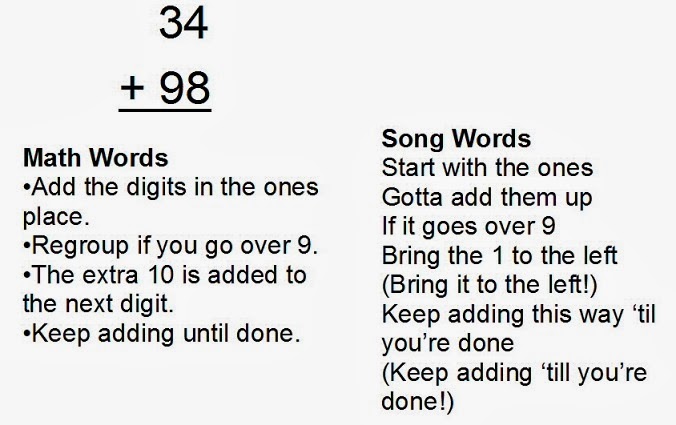
For this session I wrote what I called "math words" that explained the steps or vital information for the different topics.  The students had already done this on their worksheets, but to be sure there was no confusion, I built upon what they had written or what we talked about in the groups.

I made a sample list of math words that described how to add two digit numbers when regrouping was necessary.  I displayed this slide for the class:
It's important to note for the videos that we will probably have an animation of their math problem being worked out while they perform the chorus.  That way the chorus doesn't have to stand alone, explaining every detail of what's going on.

I really built it up that the left column was me as an old, tired math teacher.  Their job was to write a fun version that brought my words to life.  

Crystal did a great job of showing how the "song words" could be rapped or sung.  She played a simple beat on her keyboard and improvised over it.  I used those song words to show that maybe every line won't rhyme.  I also used the words in parentheses to show how the group might shout those words or echo them.  Again, we demonstrated that with Crystal's improvisation.  

Being a part of any original music creation in school is a gift to me.  It is good to see the passion that comes from it, even if the words are about math!

So we handed back their papers from the first session and gave each group my set of math words.  They really did a good job!  Again, I was able to go from group to group and have good conversations with the students.  They were taking it seriously and their excitement for creating something new was a great encouragement to me.

Most haven't complete their chorus yet, but some were ready to start working on the performance.  I showed them Smart Drums in GarageBand and they practiced with that until the end of the session.

Next week we expect to record a few groups' work.

Saturday, November 16, 2013

Starting the Smart Jams Project

Crystal and I started the Smart Jams music video project with the fifth graders this week.  With so many other things going in the district and so much riding on this project I was more nervous that morning than I have been in years.  The first sessions have gone very well, though.

The Smart Jams project requires students to make original, simple songs and videos about classroom content.  In our case, we are focusing on math.  I have been using a process to make the songs and videos in a reasonable amount of time.  The work here was funded by a MACUL grant and it is my first attempt to do this with so many students at once.

Explaining the problem (students with low math scores) and showing them the sample videos we will make to address it, I introduced the project to the four different classes.  I told them we have three goals:
  • Practice math during music
  • Practice creativity
  • Learn new technology
There was a lot of enthusiasm from the students when they realized the will be writing their own songs and recording them.  They liked the examples we made and Crystal received a round of applause in a couple classes for her performance in our sample Perimeter and Area song.

I told them we'll put the final products on YouTube.  It is so clear that students are inspired into action and ideas flow when they know their work will reach a larger audience.  

Each of the classes progressed at a different rate, but the general flow of the lesson so far has been:
  • Introduce the project - I let them know I need their help.  I have to present about this at the MACUL conference in March, so I'm hoping for good things!
  • Talk about to write songs - We brainstormed some things that should be in a song about our school.  In some classes we had students work in pairs to practice writing two or more lines for the song.
  • Take pre-tests - Two of the four classes were given a pre-test so we can determine if the extra time spent on math helped them.
  • Demonstrate the recording process - I wrote a version of a song using the ideas we gained in brainstorming.  Crystal also wrote her version.  We recorded her performing as a rap.  I uploaded it to UJam.com so students could hear the music it generates and the different styles we can choose from.  I then exported it as an mp3 and pulled it into the Video Star app on my iPad.  We used that to make a video of the students dancing or generally having a great time to the music.  We were done with that process within 20 minutes.
  • Group Warm-Up - Crystal and I assigned students to groups based on their math skills and other factors that she felt would make a good mix.  To help students relate well to each other, I had them fill out a half-sheet paper as warm-up activity.  It asked them questions about their musical interests and abilities.
It has been great seeing some students get so excited about performing.  I look forward to starting the songwriting about math next week and we will record some groups singing or rapping by the end of the week.

Crystal and I both agreed the hardest part of them will be writing lyrics that rhyme and explain how to do the math.  Most likely we will have them write drafts and we'll be putting a lot of time into polishing them up.


For now, here's a short clip of us playing the Area and Perimeter Song live as Crystal taught them the motions.